Data Sheets
A Data Sheet allows you to associate real data with your components so that they can be printed for print-and-play, sent to a professional service to produce a final physical product, or used in online play. To link a data sheet you must create a spreadsheet in Google Drive and link it to your product. By using a full-featured spreadsheet you can take advantage of advanced spreadsheet features like formulas, references, and lookup tables.
Follow these instructions to create and link a data sheet to your project.
- Create a new spreadsheet in Google Drive
- The spreadsheet can have any name
- Navigate to your project settings page or any component editor.
- Click the Choose a Spreadsheet button.
- Select your spreadsheet from the dialog
- Create data sheet right within SuperGAME Party, without using Google Drive
- Live update components as data sheet changes
Creating Component Data
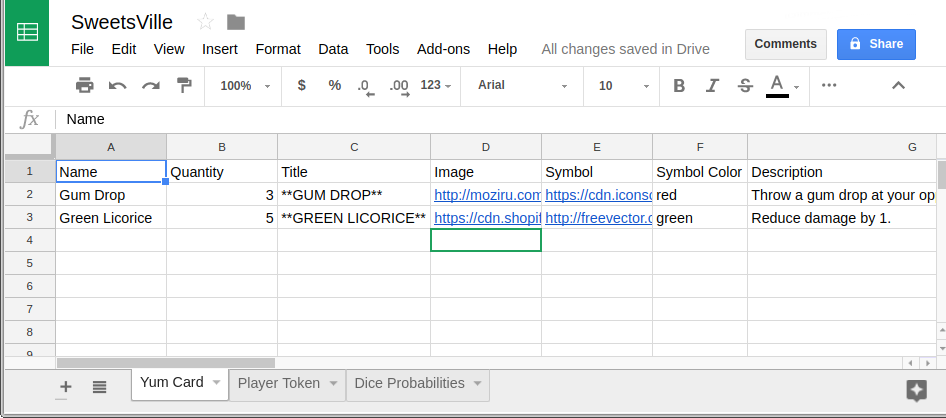
Consider the following example Google Sheet.
Component Sheets
Components look for their data within a sheet with the same name as the component. In the above example, the Yum Card will find it's data within the Yum Card sheet and the Player Token component will find it's data in the corresponding sheet called Player Token.
A third sheet called Dice Probabilities is present but it is only being used to calculate some internal data tables. A sheet that doesn't share a name with a component is not used within the project.
Component Instances
A component can have many instances. Each instance represents the unique content for that component. The rows of your data sheet define the data for each instance.
In the above example, the Yum Card component has 2 instances. The first row of the sheet describes the fields that are available on the instance. The only required field is Name.
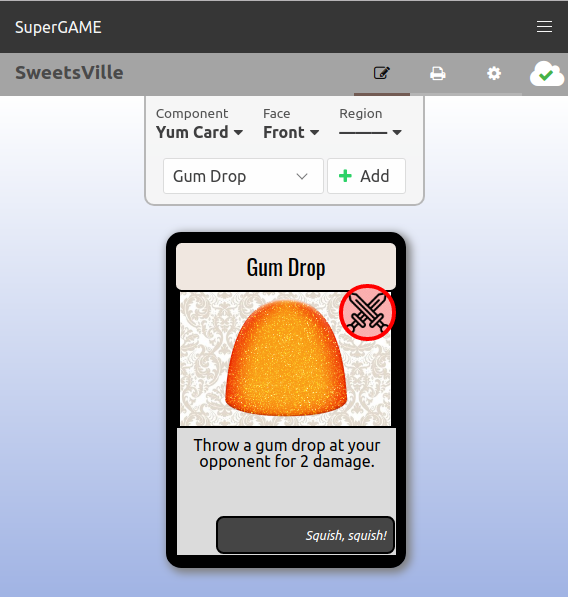
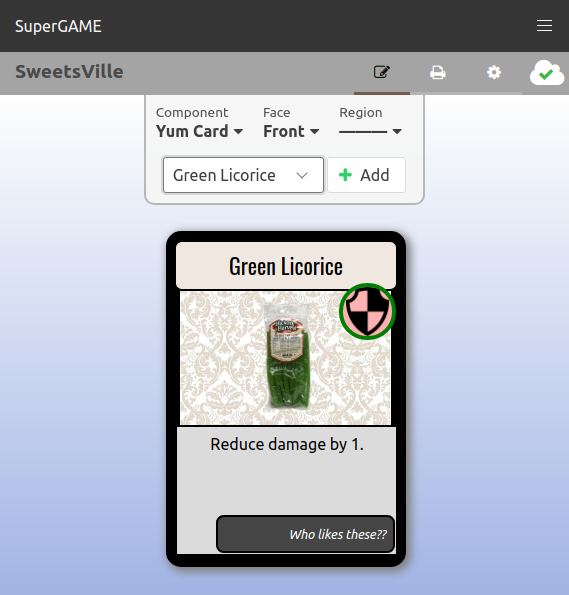
The other 2 rows are the instances themselves. In this example there are 2 instances, "Gum Drop" and "Green Licorice". The remaining columns define the data that can be associated with regions on the component. (See components to learn how to associate data with region properties)
Instance Fields
Each column of your sheet represents a piece of data you can associate with your component's regions. The only required column is Name. The following field names are special:
- Name — This is used by to identify the instance in the component editor and print pages.
- Quantity — This is used by the print page to determine how many of each instance should be printed. The default Quantity is 1.
All other column titles are up to you as the game designer. Each one can be associated with a region property to define exactly how that region will look for the given instance. You can choose any column names that make sense for your game and each column can be linked to any number of region properties.
Keep the following in mind when formatting the data in each cell:
- Fields meant to hold text can use markdown syntax for things like
bold, italics, paragraphs, etc.
- e.g. in the above example, the cells of the Title columns will appear bold on the component
- Fields meant to hold colours can use any valid representation
- hex values (
#RRGGBB, e.g.#23B4F9) - RGB (e.g.
rgb(45, 172, 219)) - any CSS colour name
- hex values (
- Fields meant to hold images can be any URL that leads to an image
- Automatically identify and warn about data formatting errors
- Link to an image that you've previously uploaded to your image library, rather than using an external URL
Full Example
Using the above example sheet, consider this component in the component editor:
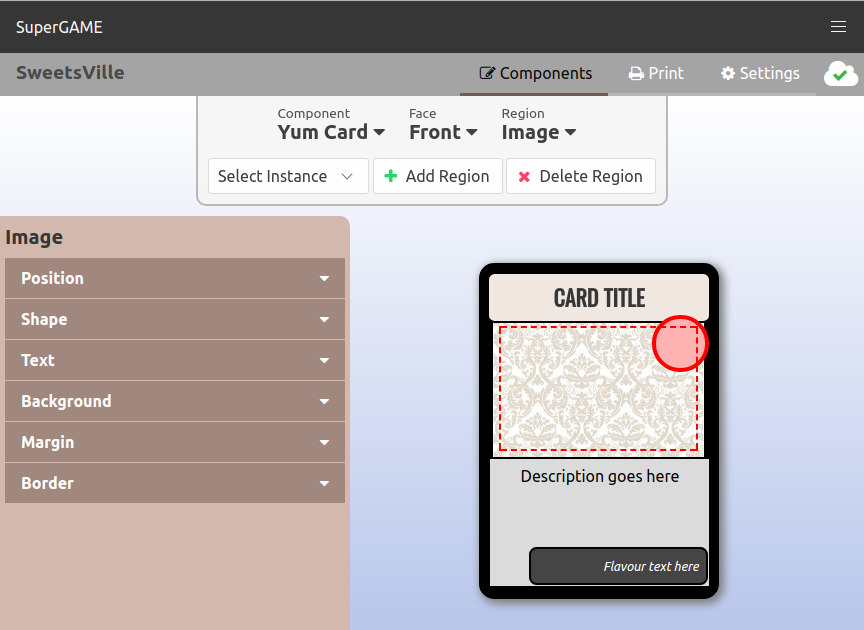
With no instance selected, we see only the default data defined using the editor interface. However, selecting an instance name allows us to preview the component with the custom data of that instance: