Project Settings
Project Header
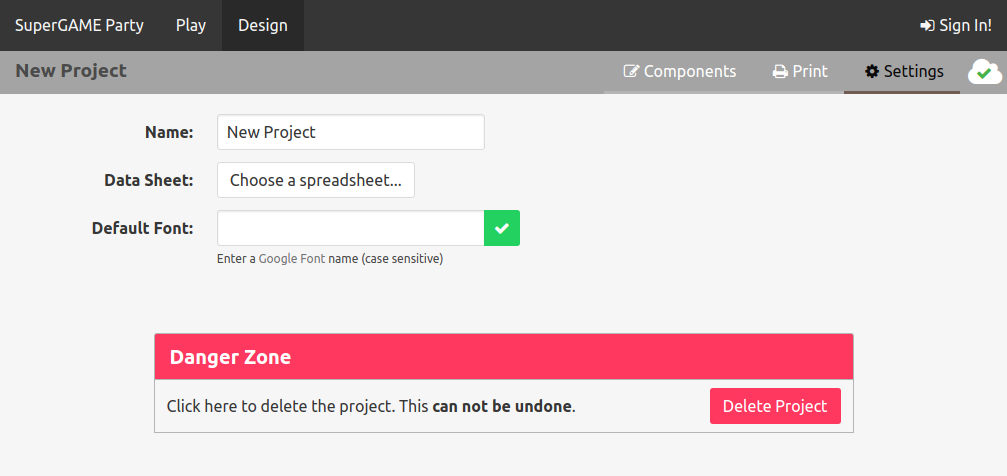
All project pages contain a header bar that shows
- the project name
- links to all project tools
- status of synchronization with the server
Project Sync and Saving
Changes to the project must be manually saved. Click the  button in the upper
right corner.
button in the upper
right corner.
Clicking the save button will save your changes locally on your computer. This allows you to work offline. These changes will be synchronized to the server automatically. The cloud icon in the project header shows whether your project has been saved to the server.
| Status | Meaning |
|---|---|
 |
Project is synchronized with server |
 |
Project is synchronizing with server |
 |
Error communicating with server, project may not be synchronized |
- No manual saving required
- Live collaborative editing, like Google Docs
Settings
From the project settings page you can change:
- Project Name — edit the name and click the save button
- Linked Data Sheet — see data sheets
- Default Font — enter the name of the Google Web Font (case sensitive!) (FUTURE: upload custom fonts)